MT5 Complete Guide: Charts, Order Placement, TSL, Alerts, and Troubleshooting
From MT5 installation and interface navigation to order types, TSL trailing stop loss, chart drawing tools, price alerts, and common troubleshooting—an essential MT5 guide for gold intraday traders.
Why Choose MT5?
"Keep your PC running with MT5 open, then place orders on your phone—the computer side will sync."
The core value of MT5: multi-device sync lets you see signals on your phone and confirm execution on the computer. Compared to MT4, MT5 supports more timeframes (M1~Monthly) and technical indicators, plus the MQL5 programming language—perfect for eventually learning automated trading (EAs).
Windows and Mac Installation
Windows users can simply download and install from their broker's official website. Mac has no native version; options include Parallels/Boot Camp to run Windows, WebTrader, or a Wine emulator.
Chart Window Operations
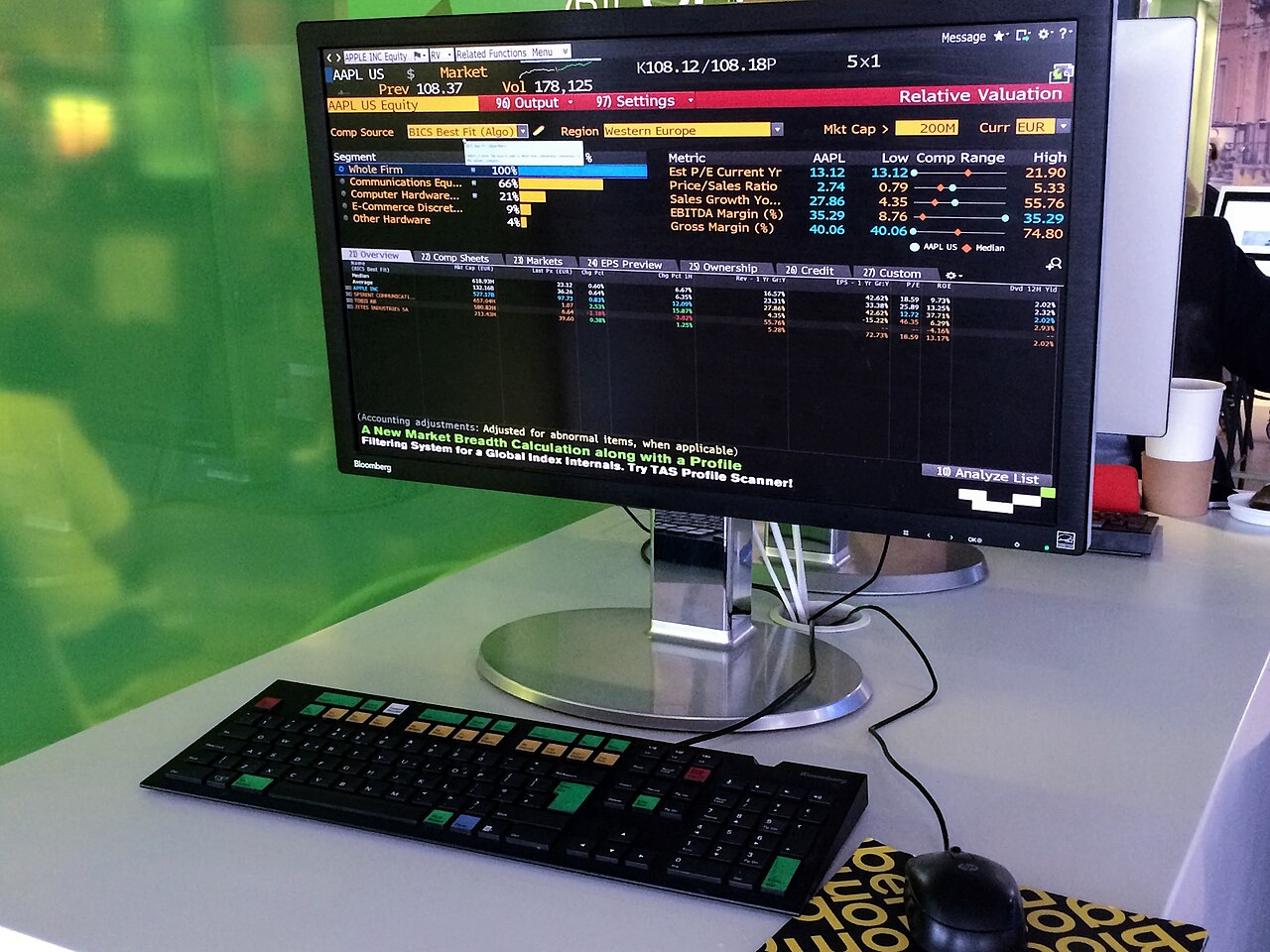
*Bloomberg Terminal—a professional financial tool in MT5's class. Understanding the interface of professional tools helps broaden your perspective.*
Double-click XAUUSD in the Quotes window to open the chart. Candlestick, bar, and line charts are supported. It's recommended to stick with candlestick charts because bullish/bearish engulfing patterns, hammers, and doji stars are the most useful reversal signals.
Multi-chart layout: Right-click → Window → Tile Vertically/Horizontally to view multiple timeframes at once. A common setup: H1 on the left to identify the trend, M5 on the right to find entry points.
Adding Indicators
Insert → Indicators → Choose the indicator you need. Common settings:
- MA (Moving Average): Period 10/20/50/100/200, applied to close
- Bollinger Bands: Period 20, deviation 2
- RSI / MACD: Found under Oscillators
"I'll take the MA100 entry"— when the price drops to MA100, it's often a short-term entry opportunity.
Timeframe Shortcuts
| Shortcut | Timeframe |
|---|---|
| Alt+1 | M1 |
| Alt+2 | M5 |
| Alt+3 | M15 |
| Alt+5 | H1 |
| Alt+6 | H4 |
| Alt+7 | D1 |
The most commonly used combination: H1 to confirm the main trend, M5 to capture entry timing.
Order Types Explained
Breakout Pending Orders (Buy Stop / Sell Stop)
Automatically triggered when price breaks through a certain level. Buy Stop triggers a buy on an upward breakout; Sell Stop triggers a sell on a downward breakout.
"Buy stop sometimes helps you avoid pressing buttons impulsively—letting it run on its own feels more relaxed."
Pullback Pending Orders (Buy Limit / Sell Limit)
Automatically triggered when price pulls back to a certain level. Buy Limit buys at a lower price; Sell Limit sells at a higher price.
The key difference: Stop is "chasing the breakout," Limit is "waiting for the pullback."
Market Execution
Enter directly after confirming the trend. Note: spreads widen during high-volatility sessions, so market execution is not recommended—use pending orders instead.
Stop Loss and Take Profit Settings
Set SL and TP in the order window when placing the trade. Core principle: the stop-loss amount on any single trade should not exceed 2% of total account equity.
Trailing Stop Loss (TSL)
Setup Steps
- Find the open position in the "Trade" tab
- Right-click → Trailing Stop
- Choose the pip distance (commonly 20/30/50 pips)
How TSL Works
When the order is in profit and price moves in the favorable direction beyond the set distance, MT5 automatically raises the stop-loss level to lock in profits.
TSL for Different Strategies
- Short-term M5: 10–20 pips ($1–2)
- Swing H1: 30–50 pips ($3–5)
"Step-by-Step TSL Tightening"
- Set TSL wide at the start (50 pips) to give the price room to run
- After 100 pips of profit, tighten to 30 pips
- After making a new high, tighten further to 20 pips
"TSL is like holding a rope—too short and it strangles the trade, too long and it slips away."
Chart Drawing Tools
Trend Lines
Insert → Line Studies → Trendline (shortcut Alt+I). Connect two obvious highs or lows. A trendline with 3 or more touchpoints is more reliable.
Horizontal Support and Resistance
Recommended to use different colors: red = resistance, green = support, blue = psychological levels.
Fibonacci Retracement
Insert → Fibonacci → Fibonacci Retracement. Drag from an obvious low to a high; the tool automatically marks the 23.6% / 38.2% / 50% / 61.8% / 78.6% retracement levels.
Price Alerts
"Set your alerts, only watch when signals appear."
Two ways to set them:
- Right-click on the chart → Alerts → Create
- Tools → New → Alert Setup
It's recommended to set Alerts on both sides of a key level, with the expiry set to "Repeat Daily."
Common Problems and Solutions
Chart Freezes
Check the connection status (if the terminal window shows "Disconnected," log in again). Too many charts/indicators can also slow things down—keep only the 1–2 essential charts.
Pending Order Not Filled
Common causes: price didn't reach the level, the pending order expired, spread is too wide, or insufficient account funds. Make sure the expiry is set long enough.
TSL Not Triggering
TSL only activates once the order is in profit and exceeds the set distance. The mobile MT5 app may fail to trigger TSL in sleep mode—it's recommended to keep the desktop version running or use a VPS.
Common Shortcuts
| Shortcut | Function |
|---|---|
| F9 | Open New Order |
| Ctrl+G | Symbol List |
| Ctrl+D | Hide/Show Terminal |
| Delete | Delete Selected Chart Object |
| Right-click Drag | Measure Price Distance Between Two Points |
Chapter Summary
- Indicators are aids; discipline is the core
- Once TSL is activated, do not manually remove it
- Spend 5 minutes checking Alerts before each session opens
⚠️ Disclaimer: This article is for educational purposes only and does not constitute investment advice. Investing involves risk.